Please follow the steps below to turn off two-sided printing and also save the single sided option as a the preset:
1) Open an existing multi-page document from any program
2) Go the File menu and choose Print
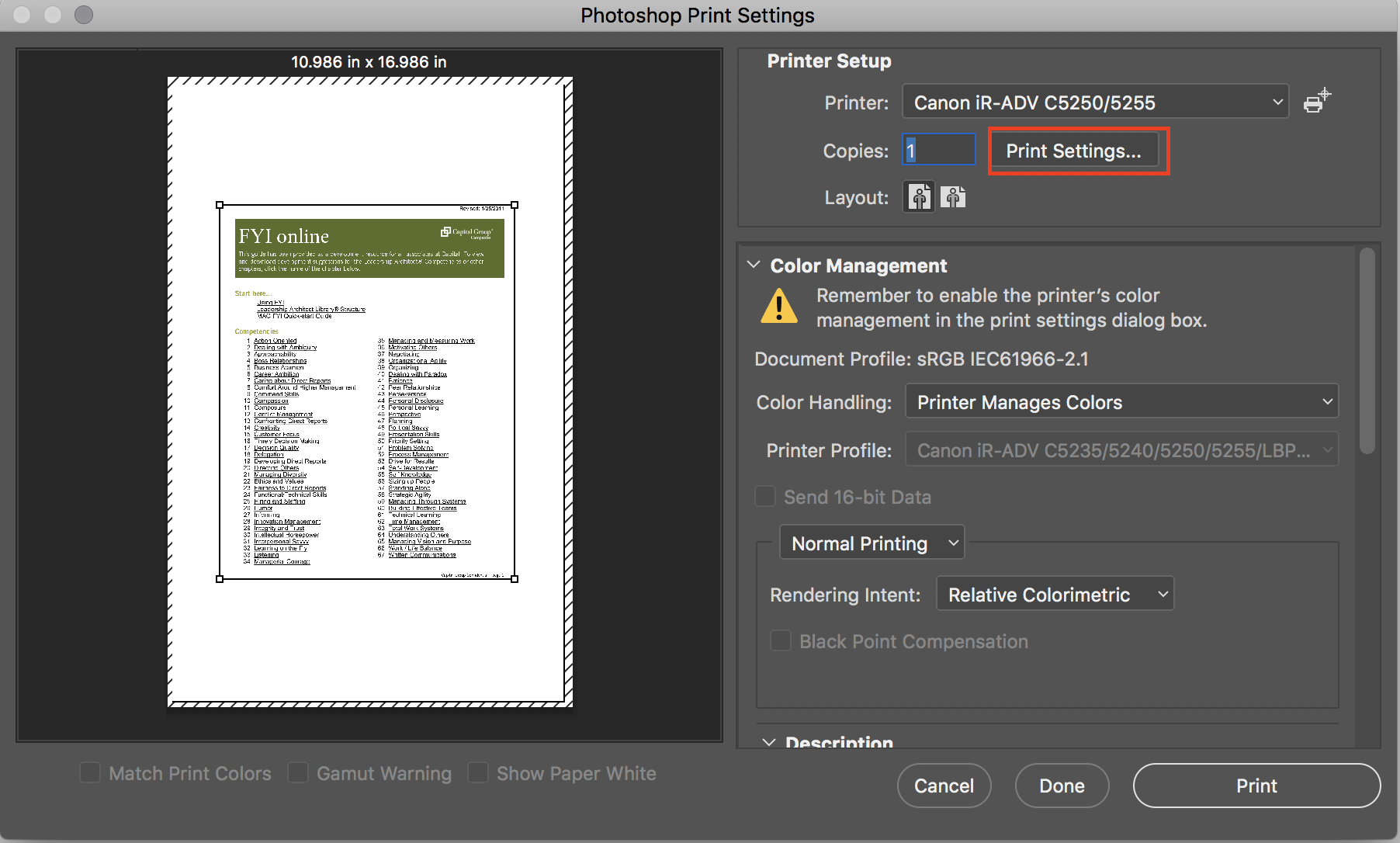
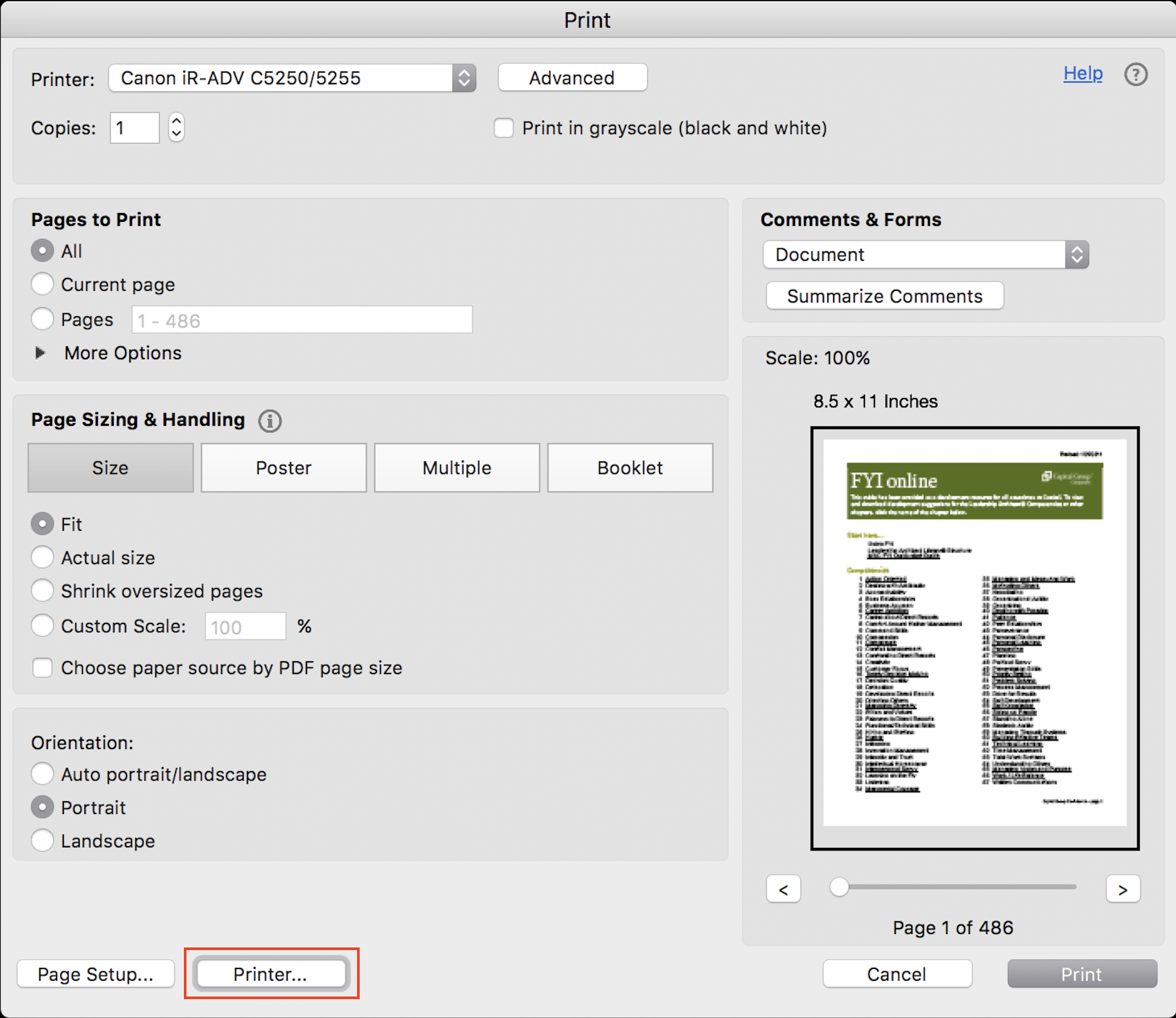
Note: Please know that some applications, like the Google Chrome, Adobe Photoshop and Acrobat DC have their own print dialog windows and you would need to find and click on the "Printer" setting button. See the application specific examples provided at the bottom of this article.
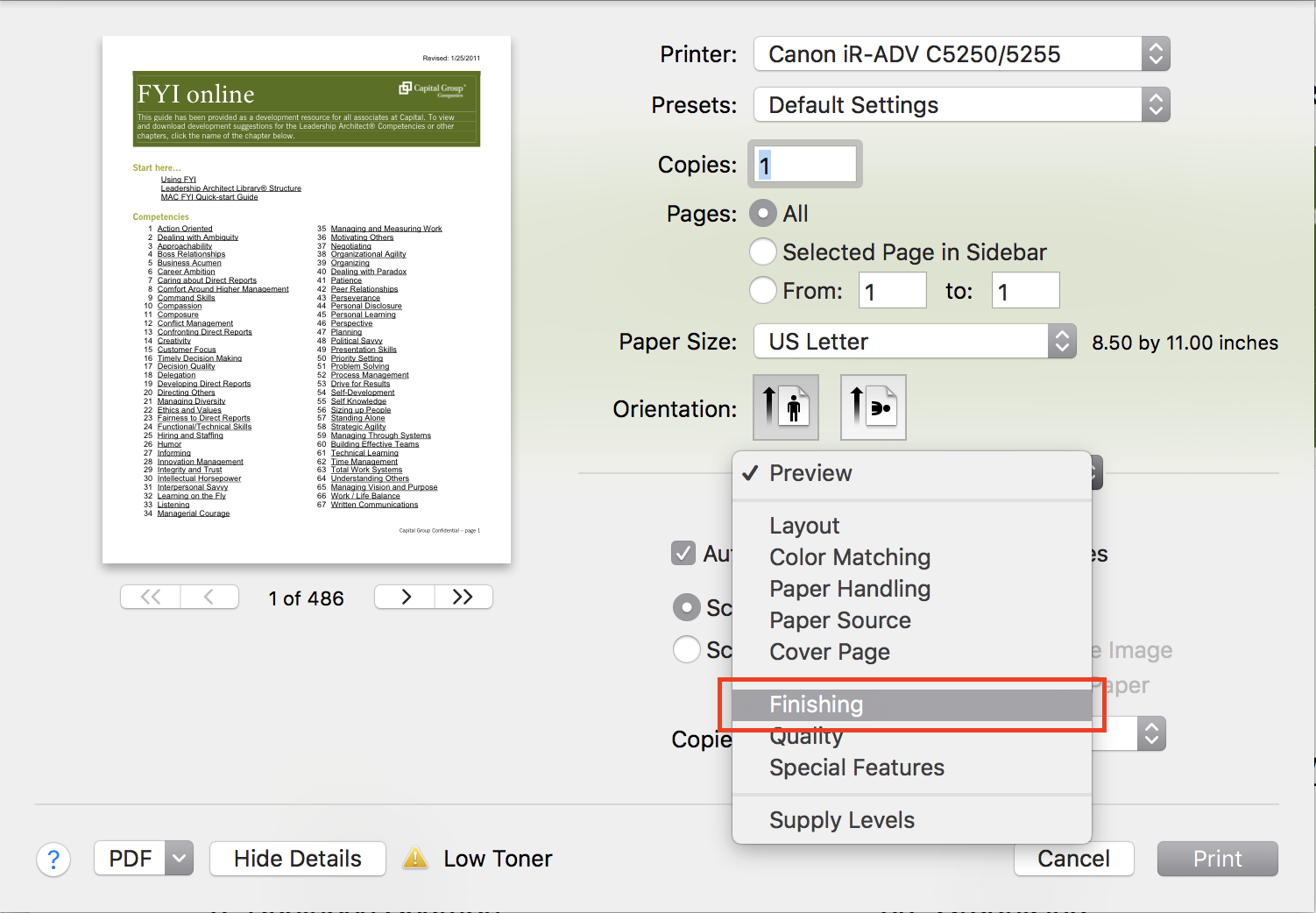
3) In the window that appears, click on the centered pull down menu and choose Finishing
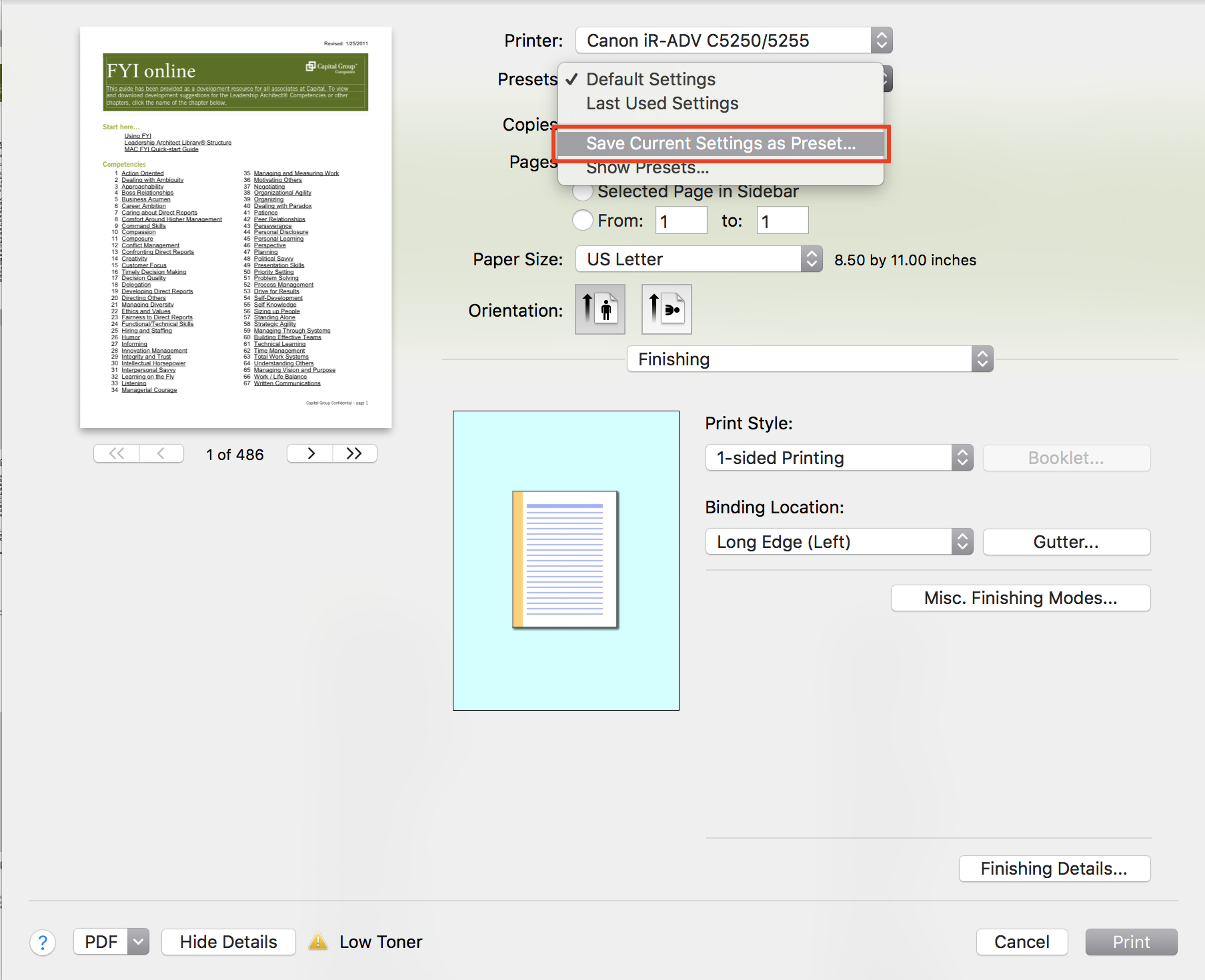
4) Under Print Style choose 1-sided Printing
5) To save this setting as one of the presets, under Presets, select Save Current Settings as Preset
6) Enter the name of the preset and click OK
7) Click Print, your document will be printed on one side of the page




Comments
0 comments
Please sign in to leave a comment.